







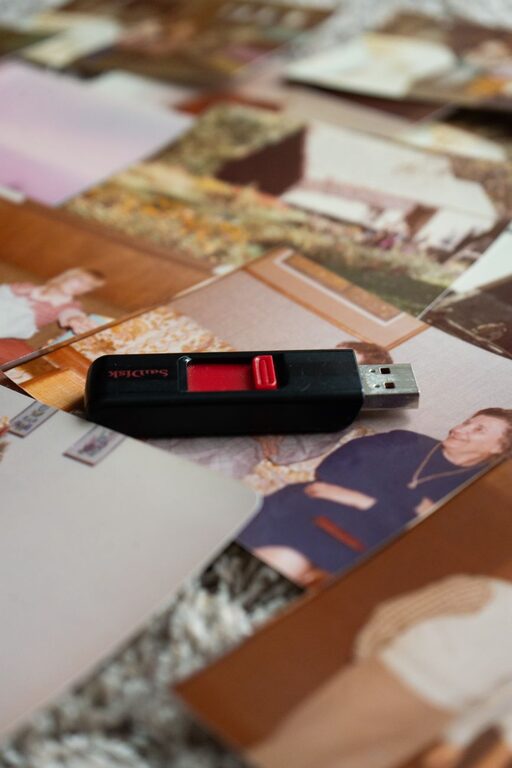
Digital photos make it easy to capture everyday moments, but they can quickly become difficult to manage. A single phone may hold thousands of images, including screenshots, duplicates, blurry shots, and treasured memories. When photos are scattered across devices and apps, finding one special picture can feel like a chore.
The good news is that organizing digital photos does not require a perfect system. With a few simple habits, you can create a collection that is easier to browse, safer to store, and less likely to overwhelm you.
Start With a Simple Goal
Before sorting your photos, decide what you want your system to do. Most people need to accomplish three things:
– Find important photos quickly
– Protect photos from device failure or accidental deletion
– Make it easy to enjoy and share memories
You do not need to organize every photo in one sitting. A realistic plan is more helpful than an ambitious system that becomes difficult to maintain. Begin with your most recent photos or the collection that matters most to you.
Gather Photos Into One Main Collection
Photos are often spread across phones, tablets, computers, memory cards, messaging apps, and social media downloads. Start by identifying where your images are stored.
Make a list of common locations, such as:
– Your current phone
– Older phones and tablets
– Personal computers
– External storage drives
– Camera memory cards
– Cloud photo services
– Shared family folders
Choose one main location for your organized collection. This could be a photo service, a computer folder, or another storage system that you use consistently. Keeping one primary collection reduces confusion and makes future backups easier.
Do not delete photos from older devices immediately. First, copy them to your main collection and confirm that the files open correctly.
Create a Clear Folder Structure
A simple folder structure can make a large collection much easier to browse. Organize photos by year, followed by a meaningful event or location.
For example:
– 2024
– January Family Visit
– Summer Road Trip
– Birthday Celebration
– 2025
– New Year
– Beach Weekend
– Holiday Gathering
You can also organize by year and month if you take many photos:
– 2025
– 2025 01 January
– 2025 02 February
– 2025 03 March
Use a consistent naming style. Including the year first keeps folders in chronological order. Add enough detail to recognize the event without making names too long.
Avoid creating a separate folder for every small outing. Too many folders can make the system harder to use. If a group of photos is related, one event folder is usually enough.
Sort Photos in Small Sessions
Sorting thousands of photos at once can quickly become tiring. Instead, schedule short sessions of 15 to 30 minutes. Work through one month, one event, or one device at a time.
Use a simple decision process for each photo:
- Keep it if it is meaningful, unique, or high quality.
- Delete it if it is blurry, accidental, or clearly unnecessary.
- Set it aside if you are unsure.
The “set aside” option is useful when a photo has emotional value but is not technically perfect. A slightly blurry image may still preserve a moment that cannot be recreated. Avoid judging memories only by image quality.
If you are unsure about deleting something, move it to a temporary folder called “Review Later.” Revisit this folder after a few weeks. Decisions often become easier with a little distance.
Remove Duplicates Carefully
Duplicate photos can take up space and make browsing frustrating. Look for:
– Multiple copies of the same image
– Several nearly identical shots
– Images downloaded more than once
– Edited and unedited versions
– Screenshots that are no longer useful
Keep the version with the best quality or the most complete information. However, do not remove similar images automatically. Several photos from the same moment may show different expressions, people, or details.
Before deleting duplicates in bulk, review a sample of the results. Automated tools can make mistakes, especially when file names or image details are similar.
Use Albums, Favorites, and Keywords
Folders are useful for broad organization, but albums and labels can help you find specific themes. Consider creating albums for:
– Family members
– Vacations
– Pets
– Holidays
– School events
– Favorite places
– Important milestones
You can also mark especially meaningful images as favorites. This creates a smaller collection of photos that you can quickly revisit or use for photo books, slideshows, and framed prints.
Add keywords or descriptions when your photo service supports them. A short note such as “Grandpa’s garden, June 2023” may be more useful than relying on memory later. Include names, locations, and events when they help explain the image.
Do not feel pressured to label every photo. Focus on important images and larger collections that you may want to search later.
Protect Your Photos With Multiple Copies
Organization is only part of photo care. A backup system helps protect memories from lost devices, damaged storage, and accidental deletion.
A practical approach is to keep at least two copies in different places. For example:
– One copy on your computer
– One copy in a cloud service or external drive
For especially important photos, consider keeping an additional copy on a separate drive stored away from your main device. The key idea is that one problem should not erase every copy.
Check your backups occasionally. Open a few files to confirm they work, and make sure new photos are included. A backup that has not been tested may not provide the protection you expect.
Preserve the Stories Behind the Photos
A photo becomes even more valuable when you remember who, what, where, and when. Add short notes to important images or create a separate document with details.
You might record:
– The names of people in the photo
– The date and location
– The reason the moment was important
– A funny or meaningful detail
– The story behind the event
This is especially helpful for older family photos. Over time, names and details can be forgotten. A simple caption can help future family members understand the people and moments pictured.
If you have printed photos, scan the most important ones and add them to your digital collection. Keep the original prints in a safe, dry place rather than treating digital copies as replacements.
Build a Monthly Photo Habit
Once your collection is organized, maintenance should be easy. Set aside a few minutes each month to:
– Move new photos into the right collection
– Delete obvious mistakes and temporary images
– Add favorite photos to albums
– Confirm that backups are running
– Rename or describe important events
You can also create a yearly review routine. At the end of each year, select a small group of favorite photos. Use them to create a digital album, printed book, slideshow, or personal archive.
Focus on Memories, Not Perfection
The best photo organization system is one you will continue using. It does not need perfect folders, detailed labels, or a complete cleanup of every image. A simple structure, regular backups, and a few meaningful notes can make a major difference.
Start with one device or one month of photos. Keep the images that tell your story, protect them with more than one copy, and give important moments enough context to remain meaningful. With steady, manageable habits, your digital photo collection can become a welcoming record of your life instead of an overwhelming pile of files.